NotebookLM is Google’s lesser-known, research-focused companion to Gemini, and it just got a hefty upgrade that makes it more useful than ever. If you need to go deep on research, study, reporting, or analysis, it’s one of the best tools available right now.
Here’s what’s new in the latest update: NotebookLM can now write code (via Google’s Antigravity development platform), and output in a variety of different file formats including PDFs, PNG/SVG charts, Excel spreadsheets, and PowerPoint presentations. You can make edits to these files after they’re created, too, with follow-up prompts.
If you don’t have any source material to begin with, you can chat this through with NotebookLM and it’ll work with you to find some suitable sources on the web—right in the conversation you’re having. It’s a more natural way of approaching a topic, if you’re starting from scratch.
The AI will show you its reasoning as it goes, so you get regular updates on what the AI is doing or thinking about, rather than just icons showing spinning dots. In fact, it’s a lot more like the standard Gemini app, while still maintaining that focus on research and study.
These upgrades are rolling out now if you’re on a Google AI Ultra plan (that’s the $100 or $200 per month one), and Google says that they plan to expand to “others over time” without being any more specific than that. I was able to test out the new features using a Google AI Ultra plan.
Getting started with NotebookLM
The traditional way to get started with NotebookLM is to load it up with sources—PDFs, web links, YouTube videos, and the like—and then start asking questions about the information you’ve amassed. Now, though, you can dive right into a conversation with the AI bot and pick up some sources on the way.
To put this to the test, I wanted to see what NotebookLM could find online about the films of Christopher Nolan. Not only did the AI tool find lots of relevant info, it also synthesized it into a helpful overview. At the end of the overview, I got an Import button, so the sources that NotebookLM was referring to could be added right away. What’s more, the initial reply gets added as a source, too.

Credit: Lifehacker
Previously, NotebookLM was capable of searching the web for sources on your behalf, but the process was split between a couple of different panes in the interface, and required several clicks to get everything imported. Now, it’s integrated much more neatly into the main chat box, so you can get researching and analyzing faster.
You still have the ability to keep adding sources in the manual way via the left-hand pane, and as always NotebookLM will refer to these sources in its answers. If you ever wonder where it’s got a particular idea or fact from, you can click the citation button to see. Here, a lot of the heavy lifting was done by Wikipedia.

Credit: Lifehacker
While I couldn’t see any hallucinations here, there was a weird quirk where a request for the “key” cast members of Nolan films returned a lot of men but just two women from his 12 movies: Marion Cotillard and Anne Hathaway. Apologies to Carrie-Anne Moss, Hilary Swank, Katie Holmes, Scarlett Johansson, Rebecca Hall, Elizabeth Debicki, and the (Oscar-nominated) Emily Blunt.
I think it’s because NotebookLM became fixated on a list of frequent Nolan collaborators on Wikipedia, but that doesn’t fully explain it. Something to bear in mind if you’re relying on AI for your research: Even if actual mistakes are rare, the summarizing and collating that these tools do still needs checking.
NotebookLM excels at creating files
With a few more prompts to increase the female representation in this Nolan movie project, I wanted to test out another feature: the ability to create editable files. You can request Microsoft Office files, PDFs, and charts in PNG or SVG format, and get a download you can open up.
I asked for a PowerPoint slideshow covering all of Nolan’s films and NotebookLM obliged: I got a well-formatted, typo-free introduction to these movies, including the premise and themes of each one, and the key cast members. What NotebookLM still can’t do is generate images or pull them from the web, so you’ll need to do this yourself.

Credit: Lifehacker
Something else you can now do in NotebookLM is request edits to files that have been created, Nano Banana-style. For my PowerPoint, I requested changes to fonts and background colors, and NotebookLM was able to follow my instructions exactly—giving me a shareable slideshow from 10-15 minutes of work that would otherwise have taken me at least a couple of hours.
Next, I tried creating a PDF primer on Nolan movies, and while its design certainly isn’t going to win any awards, it was reasonably well laid out in a clean and consistent way. The information was accurately pulled from Wikipedia and the British Film Institute, and again, it’s a real time-saver—the days of having to copy, paste, and reformat answers from NotebookLM look to be gone for good for a lot of tasks.

Credit: Lifehacker
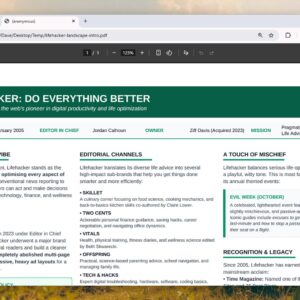
Switching to landscape from portrait PDF format was well-handled by NotebookLM, and while minor edits are trickier without a visual interface—moving a line, adding a new text box—you can always do these edits manually as normal if you need to. Or, if you’re editing an Office file and want to go all-in on AI, Copilot will be happy to help.
What I didn’t try here are any of the new Antigravity coding features, as that’s really a whole different topic, and something I don’t have much experience with. In terms of the rest of the new features here, NotebookLM is clearly better and more useful than ever, even if the perennial AI warning to double-check responses still applies.