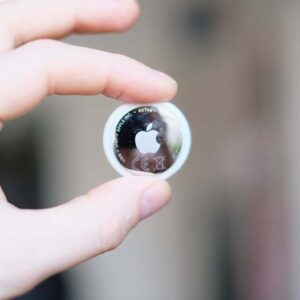
Our review of the new AirTag went up yesterday, and that involved testing the new Precision Finding feature on Apple Watches. In the process, I found the setup to be confusing and counterintuitive, and was relieved to discover it wasn’t just me. If, like me, you’ve been trying to set up Precision Finding on your Apple Watch for the AirTag you’ve just unboxed and attached to a precious belonging, here are the exact steps to take.
First, make sure your Apple Watch is compatible with the feature. That means verifying you’re using the Series 9 or later (you would have bought it in or after 2023) or the Ultra 2 and newer. Then, go to the Watch app on your phone and do the following to make sure you’ve received the latest software update that adds the functionality.
-
Tap General.
-
Press Software update.
-
Make sure the page says you are running watchOS 26.2.1. If not, tap Install Now.
If you need to download the software, make sure your watch is on its charging cradle. Even though my Apple Watch Series 11 was fully charged, I was still told to make sure it’s connected to power and had at least 50 percent of juice left for the software to install. After a few minutes, my watch restarted and the app said it was updated to the newest version of watchOS.
Now that you have the right hardware and software, you can set up Precision Finding. I assume you’ve already connected the new AirTag to the iPhone that’s linked to your watch (and if you haven’t, make sure to do that).
This was the part of the process that confused me. Instead of opening the Find Items app on the watch, Precision Finding for the new AirTag actually exists as a shortcut in the Control Center. Here are the steps to add it there:
-
Open the Control Center by pushing the button below the dial on the side of the watch.
-
Scroll all the way to the bottom and press “Edit.”
-
Push the + button at the top left of the screen.
-
Scroll down and tap Find Items.
-
Press Find AirTag, then tap Choose. You should see the new AirTag you’ve linked to your account here.
-
Select the AirTag you want to precisely find.
-
Drag the icon to whichever position you prefer within the Control Center.
-
Hit Done.
Now, whenever you want to locate your item, you can pull up the Control Center, press this button and the Precision Finding interface will appear, showing how far away it is. You can also push the button on the bottom right of this screen to get the AirTag to ring, guiding you to where your item is.
This article originally appeared on Engadget at https://www.engadget.com/computing/accessories/how-to-use-your-apple-watch-to-precisely-find-your-new-airtag-164922731.html?src=rss