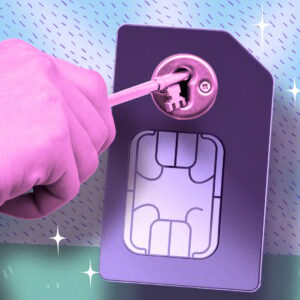
Your phone number is the skeleton key to your digital life, and carriers have spent years handing out copies to anyone with a decent script. Resetting a bank password, recovering an email account, approving a crypto withdrawal: All of it can run through a text message sent to a number that a call-center rep can reassign in minutes.
The good news is that all three major U.S. carriers now let you lock your number with a toggle. Here’s how the attacks work and where to find each switch.
How SIM swaps and eSIM hijacking work
A SIM swap starts with research. Attackers collect your name, address, and account details from data breaches or phishing, then contact your carrier pretending to be you. If they convince someone to move your number onto a SIM they control, your calls, texts, and two-factor codes go to them instead. A close cousin is port-out fraud, where the attacker opens an account with a different carrier and arranges for your number to be transferred there.
The scale is hard to pin down, but the FBI’s Internet Crime Complaint Center logged 982 SIM swap complaints and about $26 million in losses in 2024, down from 2,026 complaints and $72.7 million in 2022. That decline looks encouraging, but the figures only include crimes that victims bothered to report to one federal portal.
eSIMs removed the plastic card, not the weak link. Researchers at the Russian firm F.A.C.C.T. found that attackers now break into a victim’s carrier account with stolen or leaked credentials, generate a QR code, and scan it on their own device. Your legitimate SIM is deactivated at the same moment. There’s no store visit and no phone call to a rep.
Intel 471 also flagged a provider that let the activation code go to email instead of SMS, which gave attackers a second inbox to compromise. That provider has since closed the loophole, but the lesson stands: Every shortcut for locked-out customers is also a shortcut for criminals.
What SIM locks and port-out PINs actually do
Carriers now offer three overlapping defenses. A SIM lock blocks SIM or eSIM changes and device upgrades; a port-out lock stops your number from moving to another carrier; and a PIN adds a password check when you contact customer service or request a transfer.
I’d treat the PIN as the weakest of the three. PINs aren’t bulletproof because company reps can still override them. A lock that grays out the option entirely is much harder to talk your way around.
In its 2023 order, the FCC instructed wireless providers to offer customers a free account lock and to notify them of SIM change and port-out requests. Compliance deadlines were pushed back until federal paperwork review finishes, though, so don’t assume every carrier has implemented these features fully.
How to lock your number on AT&T
AT&T bundles everything into a single toggle called Wireless Account Lock. According to AT&T’s support page, it blocks device upgrades, SIM and eSIM swaps, IMEI changes, number changes, transfers to another carrier, and edits to authorized users and billing info. You can still pay your bill, change plans, and unlock a device.
To turn it on (postpaid):
-
Open the AT&T app on a device that’s active on your wireless account, and sign in.
-
Tap the person icon.
-
Scroll to Wireless account lock.
-
Swipe to lock.
Prepaid customers follow a different path: Sign in, choose your number, tap Profile & Settings, then Account Info & Preferences, and select Turn on under Wireless Account Lock. AT&T texts a one-time code to confirm.
Only users with primary or secondary access can flip the switch, and AT&T emails the account holder and texts every active number whenever the lock changes. I like that. A silent change is the whole point of these attacks, so noisy notifications are half the defense.
How to lock your number on Verizon
Verizon splits the job in two. SIM Protection blocks unauthorized SIM and device changes, while Number Lock blocks your number from being transferred to another carrier. Verizon’s own documentation notes that Number Lock alone doesn’t prevent SIM card changes, so you want both switched on.
To enable them:
-
Open the My Verizon app.
-
Tap the Me tab, then Edit profile and settings.
-
Find SIM Protection and toggle it on for each line you want covered.
-
Find Number Lock and do the same.
After you disable SIM Protection, SIM changes and upgrade orders stay blocked for another 15 minutes. And if you ever port out, Number Lock must be off before you can generate a Number Transfer PIN. Two toggles is slightly more homework than AT&T’s single switch, but it lets you lock the number while leaving device upgrades open, which is handy if you swap phones often.
How to lock your number on T-Mobile
T-Mobile also uses two features. SIM Protection blocks SIM and eSIM changes, and Port Out Protection blocks transfers to other carriers. Both are free.
To enable SIM Protection on a postpaid account in the T-Life app:
-
Tap the Manage tab, then the gear icon.
-
Select Security, then SIM Protection.
-
Toggle protection for the whole account or for individual lines.
-
Tap Save Changes, then Continue.
Port Out Protection works differently since it’s an add-on you apply to each line separately. In T-Life, go to Manage, then See Plans, then Manage add-ons, and check the box next to Port Out Protection. Repeat for every line on the account.
On T-Mobile’s side, authorized users can add either feature, but only the Primary Account Holder can remove them. The per-line setup is tedious on a big family plan, though it’s worth the ten minutes. T-Mobile also recommends setting an account PIN of 6 to 15 digits, which you can only change from the primary holder’s phone while on T-Mobile’s network with wifi off.
What these locks don’t cover
A lock protects against changes made through your carrier—it doesn’t protect against someone who already has your carrier login, who might be able to switch it off.
AT&T at least requires its app on a device active on your account, which raises the bar. Still, researchers recommend unique passwords and two-factor authentication on the carrier account too.
Remember to unlock before you upgrade your phone or move an eSIM, because every carrier will block you otherwise. Flip it back on afterward.
The bigger fix is to stop letting your phone number guard anything valuable. Switch your bank, email, and crypto accounts to an authenticator app or a passkey where you can. Think of the carrier lock as a seatbelt: You’ll rarely need it, and you’ll be glad it was buckled the one time you do.