How we turned Apple’s haptic semantics into three numeric parameters that work identically on iOS, Android, and web — and mirror our Figma components.
I’m currently working on a design system for a large SDUI project, and in this article I want to share my experience implementing haptics in our applications: explore the challenges you may encounter and arrive at a consistent solution across three platforms — iOS, Android, and mobile web.
In this article, I’ll walk step by step from chaos (“each platform does its own thing”) to a unified system of haptic presets configured by designers in Figma and delivered to developers in JSON.
But first, let’s briefly define what haptics is.
Haptics is a tactile feedback technology used in mobile devices, game controllers, and wearable electronics to enhance user experience through the sense of touch. Instead of relying solely on visual or audio signals, the interface “responds” to the user with physical feedback — a light vibration, pulse, or micro-movement.
For modern applications, this has long become the norm, and for users, an integral part of everyday experience. But when you dig deeper, it turns out that platforms take very different approaches to tactile feedback — and there is no ready-made cross-platform solution.
I won’t rehash the fundamentals here — Avinash Bussa’s “Haptics for enhanced UX” on UX Collective is a solid primer if you’re new to the topic. In this article I’ll focus on the practical problem: how to make haptics consistent across iOS, Android, and mobile web — and how to keep your Figma components aligned with the code.
Where and why haptics is needed
Before choosing presets, it’s important to determine in which scenarios haptics actually works. I gathered references using Mobbin and grouped use cases by interaction type — this grouping later helps map specific presets.
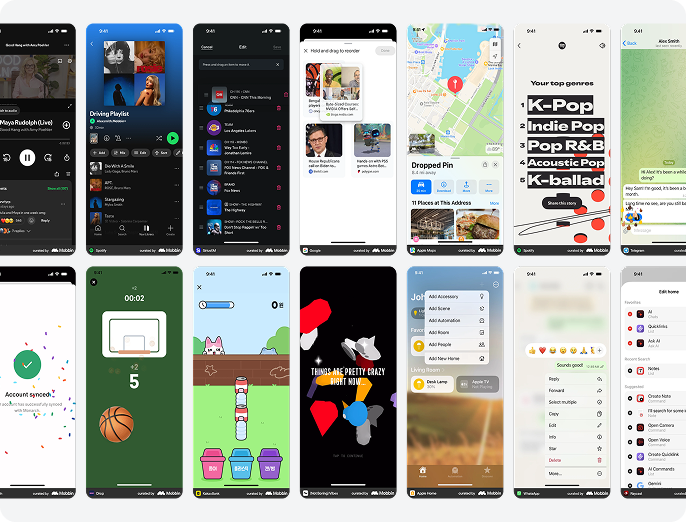
Tap / press — buttons, cells, banners. Haptics confirms the action and creates the feeling of a “physical” button. The user doesn’t have to guess whether they tapped — it’s felt. For example, sending a message in Telegram or liking a post in Instagram.
Swipes — gestures on cards, sheets, tabs. A tactile signal indicates reaching a threshold: “just a bit more and the card will fly away.” It helps control gestures without looking at the screen. A classic example is swiping in Tinder.
Drag & drop — sorting lists, moving elements. Haptics creates an illusion of weight and resistance, confirming that an object is fixed in a new position. For example, rearranging widgets on the iOS home screen.
Errors and constraints — entering invalid input or submitting an invalid form. Instant feedback without reading text — the user understands something went wrong even before seeing a message. This pattern is universal and reduces cognitive load.
Success / confirmation — completing a payment, submitting a form, achieving something in a game. Provides emotional reinforcement and a clear endpoint for an action.
Scroll and content boundaries — bounce effects when reaching the end of a list. The user feels the boundary even without looking.
Long presses — invoking context menus, revealing additional actions. Haptics confirms that the long press has been registered.
Games and gamification — deeper immersion, replacing visual feedback with tactile sensations, enhancing emotions during achievements.
Animations and transitions — make animations “tangible” and highlight key moments. Often used in onboarding flows.
What platforms provide
This is a key point that defines the entire architecture.
Google doesn’t have a unified philosophy for haptic feedback. There’s a set of constants (KEYBOARD_TAP, LONG_PRESS, CLOCK_TICK, etc.), but no semantic model behind them — it’s more a list of hardware capabilities.
Apple takes a different approach. Haptics are divided into three semantic types, differentiated not by intensity but by the meaning of the event:
- Impact — physical interaction with UI elements (tap, swipe, snap)
- Selection — switching between discrete values (picker, segments)
- Notification — result of an event that doesn’t require touch (success, error, warning)
We took this semantic model as the foundation. From here on, I use Apple’s naming — it’s important for cross-platform mapping.
Impact — physical interaction with elements
Impact haptics are used during physical interaction with UI elements — for example, when a user taps an element, a card snaps into place, or a gesture reaches its threshold. This feedback simulates a sense of contact and makes the interface feel more tangible.
Available presets:
Light — short, low-intensity pulse
Medium — short, medium-intensity pulse
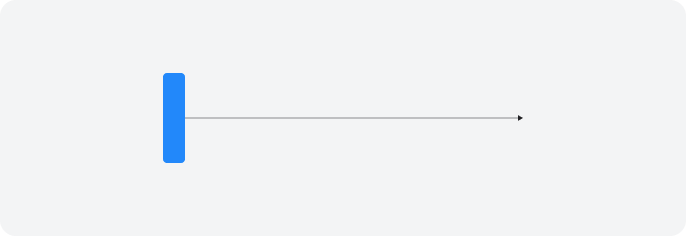
Heavy — short, high-intensity pulse
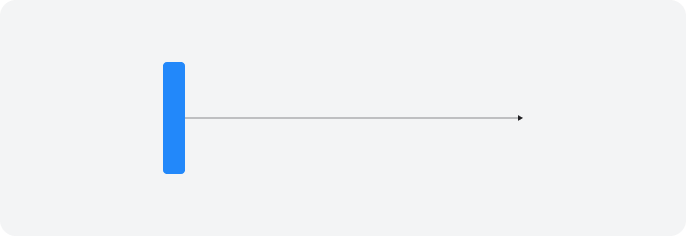
Soft — lower amplitude with a smooth onset
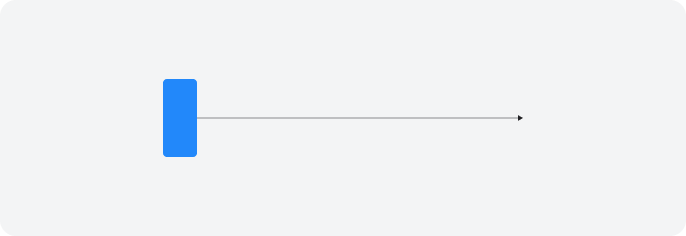
Rigid — high amplitude with a sharp onset
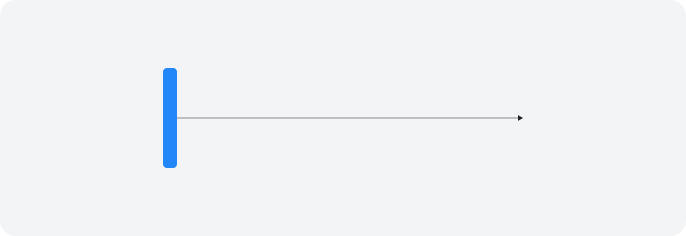
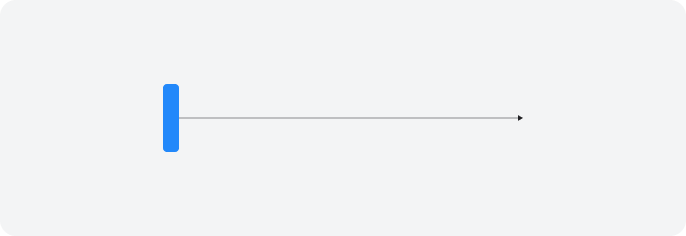
Selection — changing the current value
Selection haptics are used when switching between discrete values — for example, scrolling a picker or toggling segments. A short tactile “tick” accompanies each change and helps users feel each step of the interface.
Apple provides one preset:
SelectionChanged — a single short pulse confirming a value change
Notification — event result
Notification haptics indicate the result of an event — success, warning, or error. This feedback reinforces the message status and helps users quickly recognize what happened. It doesn’t require physical interaction.
Apple provides three presets:
Success — a sequence of 2 pulses indicating successful completion
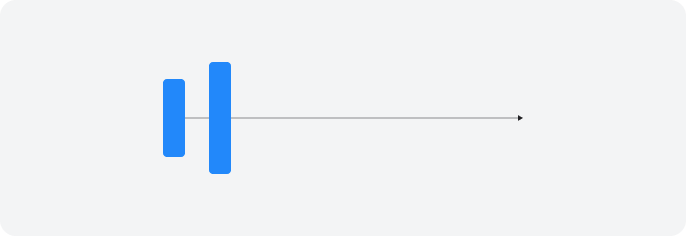
Warning — a sequence of 2 medium-intensity pulses indicating a warning
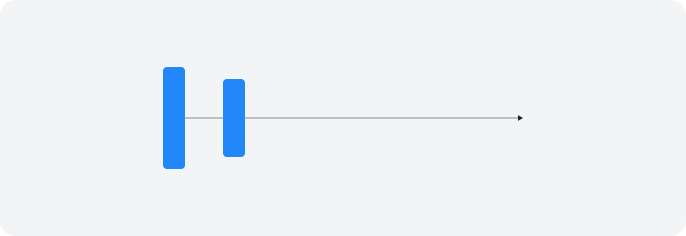
Error — a sequence of 4 emphasized pulses indicating an error
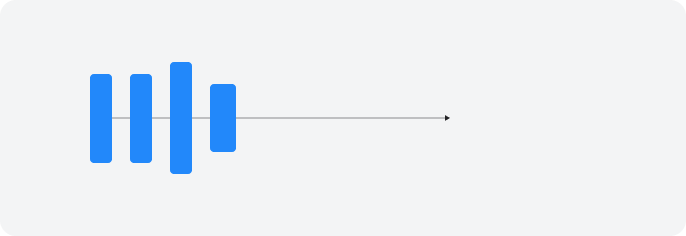
Custom haptics
For our application, we also needed customizable haptics with flexible configuration — for example, for complex Lottie animations.
An important note: haptic feedback is produced by the device’s vibration motor. Apple’s motors are standardized, while Android devices may have very different motors, some of which don’t support intensity control. For testing, it’s best to use a device you trust — we tested on a OnePlus 15, and the results were almost identical to the iPhone.
Detailed information about the full parameters of vibration motors can be found in the Apple and Google documentation. To simplify the JSON schema (important for SDUI apps), we reduced vibration parameters to three main ones:
- Delay — delay before vibration starts (ms, from zero)
- Duration — vibration duration (ms)
- Intensity — vibration strength (from 0 to 1)
The naming wasn’t accidental — we aligned it with existing mobile web solutions.
Mapping platforms
Initially, I planned to map Apple presets directly to Google presets:
https://medium.com/media/6ad45f39291619f5333168fca52015d9/href
However, testing showed that direct mapping doesn’t work: Google constants were matched by name similarity, but the actual tactile sensations didn’t match — intensity, duration, and “character” differed so much that users would get completely different experiences on iOS and Android.
So we decided to redefine Android presets using our custom parameters.
Apple doesn’t expose exact preset values but provides clear visual graphs, which can be translated into numeric values relative to our parameters (Delay, Duration, Intensity).
As a result, we derived consistent values for:
Impact presets
https://medium.com/media/bc1720cd6ab5796bae7c20c477b488a0/href
Selection
https://medium.com/media/e5b2ae22ca24941e4eac8d7181fdc92c/href
Notification presets (composite)
Success (2 pulses)
https://medium.com/media/4193f9bcc68e7a8c416cf9507669c15f/href
Warning (2 pulses)
https://medium.com/media/e8ecbdd3ee4c8e6828eafe8a570f3349/href
Error (4 pulses)
https://medium.com/media/37d9362b5bdd00bb1f27b56c9fdd7509/href
Aligning code with Figma components
It’s important to keep the component structure in code and Figma as closely aligned as possible. This is especially useful if you want to optimize designer–developer collaboration — for example, using plugins that read components and convert them into JSON schemas.
In our code, the Haptic structure is a OneOf parameter consisting of preset sets and custom haptics. In Figma, I implemented this via a Instance swap parameter, where the designer selects the haptic type.
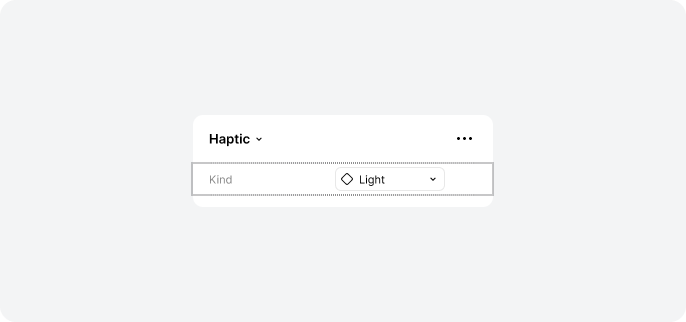
If a preset is selected, everything is simple. If custom is selected, additional parameters appear:
Patterns: Array { Pattern }
An array of haptic patterns for creating more complex feedback. In Figma, this is implemented via Variants:
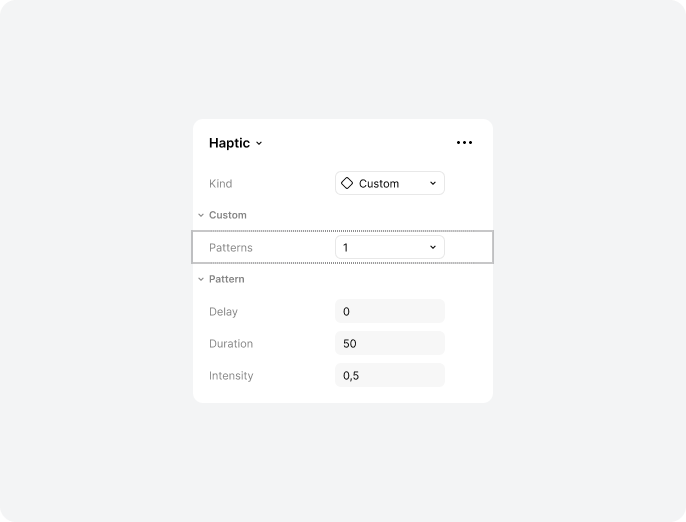
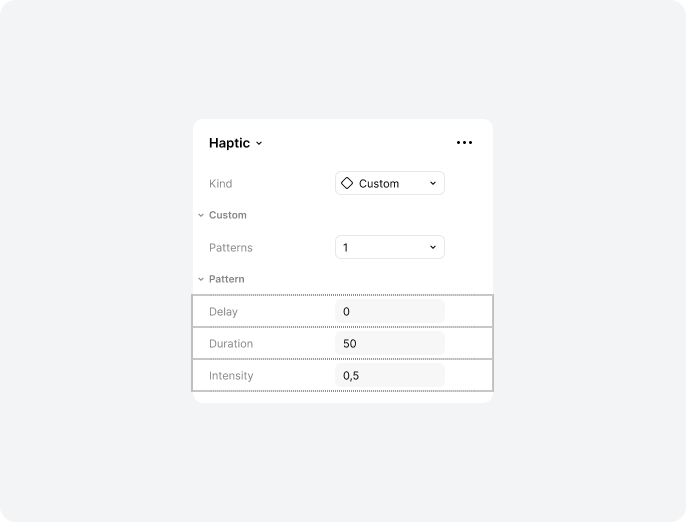
Each pattern includes three parameters (implemented as hidden Text properties):
- Delay: Integer — delay before vibration
- Duration: Integer — vibration duration
- Intensity: Number — from 0 to 1
In Figma, it looks like this:
Summary
We ended up with a unified haptic preset system that is:
- Semantic — based on Apple’s model (Impact / Selection / Notification), not hardware constants
- Cross-platform — feels consistent on iOS and Android thanks to custom parameters instead of direct API mapping
- Extensible — custom haptics (Delay / Duration / Intensity) cover non-standard cases (Lottie animations, game mechanics)
- Design-synced — Figma components mirror code structure and convert into JSON
Limitations: haptic support in mobile browsers still lags behind native platforms. For web, we use a simplified set of patterns with the same parameters but without Intensity. This is a compromise rather than full parity, but the shared preset structure at least preserves consistent naming and logic.
Enjoy the tactile feedback!
Further reading
Haptic fundamentals:
- Haptics for enhanced UX: designing for all — Avinash Bussa, UX Collective
- Dark Haptics: Exploring Manipulative Haptic Design — CHI 2025 research on how haptics can be used to influence decisions (a useful counterpoint: when haptics become dark patterns)
Platform documentation:
- Playing Haptics — Apple Human Interface Guidelines
- Haptics UX Design— Android Open Source Project
SDUI architecture:
- A Deep Dive into Airbnb’s Server-Driven UI System— Ryan Brooks, Airbnb Engineering (the canonical SDUI reference, describes the Ghost Platform that powers search, listings, and checkout)
Design-to-code workflows:
- From Figma to Production: How I Finally Synced My Design System — Alexander Burgos (practical guide on Figma → code sync with W3C tokens and auto-generated PRs)
Tools:
- Web Haptics — the web haptics solution that inspired our parameter naming
Haptics: how to build a consistent cross-platform solution and align code with Figma was originally published in UX Collective on Medium, where people are continuing the conversation by highlighting and responding to this story.