We may earn a commission from links on this page.
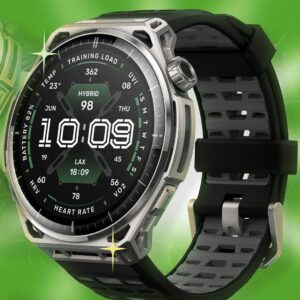
The Amazfit Balance 3 is a hybrid training watch aimed squarely at people who want premium health features at a more mid-tier price of $369.99. I think of the Amazfit Balance 3 as a health-and-recovery smartwatch first, and sports tracker second, which means a lot of its best workout features can go easily overlooked. Here are five underrated hacks to really make the most of your Amazfit Balance 3.

Unlock developer mode with a secret tap sequence on your Amazfit Balance 3
This trick works across the whole Zepp app ecosystem, Balance 3 included. Go to Profile, then Settings, then About, and tap the Zepp logo seven times in a row. This unlocks developer mode, giving you access to device information that the standard app interface normally hides. It’s a nice trick to have for troubleshooting a sync hiccup or just satisfying your curiosity about what’s running under the hood.
Developer mode also lets you install custom watch faces, rather than relying on the existing native watch face library and upload a custom face on your computer, scan a generated QR code, and install it directly onto your watch.
Log voice memos mid-workout without breaking your stride
The Balance 3’s voice assistant is a feature that’s easy to overlook if you only think of voice control as a way to start or end a workout. What I like to do is capture quick voice notes during a run or log thoughts between sets without stopping, right as the thought occurs. This is extra useful whenever you want to record how a specific set felt in a specific moment, note down an idea for your next training block, or leave yourself a reminder without breaking your flow.
To use the voice assistant mid-workout, simply press and hold the top button (or crown), and wait for the listening screen to appear before speaking. Even if you don’t want to use this feature as a training diary of sorts, you can use the voice assistant mid-workout to adjust settings (like turning up the screen brightness) or use different tools (like starting a timer). After you end your workout, sync your device to the Zepp App, and you can find your transcribed thoughts under the “Workout Notes” section, right next to your activity data.
While we’re talking voice commands, there’s even more you can do. It’s intuitive to treat the voice assistant like a basic remote control, but you can stack multiple commands into a single Zepp Flow request. This means you can start a workout and set a goal or reminder in a single sentence, something like telling it to start an outdoor run and set a 5-mile goal at the same time. This way, you can walk out the door, hold the crown, say one compound sentence with multiple commands, and be fully set up without touching the touchscreen at all.
Turn these three features off when you’re not exercising to save battery life
First, the Balance 3 lets you personalize your notifications beyond all-or-nothing enabling/disabling. This way, any critical alarms or low-battery warnings still function even when everything else is muted. For example, if you go to Settings > Notifications > Calendar on your watch, and turn off “Allow notifications,” then calendar-related reminders will no longer pop up.
What I do before a workout is disable all notifications, and then go in and enable only the handful of apps I actually care about (like text messages), while keeping the rest quiet.
Next, while we’re trimming fat, I find the Balance 3 defaults to more data collection than you probably need on a daily basis. These are the three features I dial back in order to save battery:
-
When you’re not actively exercising, reduce heart rate measurement frequency from every one minute down to every five or 10 minutes.
-
Turn off “Automatic Stress Monitoring” and “Auto Blood Oxygen” tracking unless you specifically rely on that data.
-
Disable continuous location tracking and heart rate logging when you’re not working out. Just remember to re-enable both when you start a workout.
These quick settings changes will help stop your watch from unnecessarily draining battery in the background, and you really aren’t sacrificing much in terms of data.
Fix your Amazfit’s accidental workout pauses
I wish I had figured this out before my Hyrox training. One thing I’ve noticed across Amazfit watches is that the crown (aka the top right button) is overly sensitive, meaning the watch thinks I’m constantly pausing mid-workout whenever I accidentally bump against it. Maybe I have form issues, but I personally can’t swing a kettlebell without bumping the button in some way.
Here’s my fix: Head into Workout Settings and switch the pause mechanism from a “simple press” to “Long Press.” The long press did take me some getting used to when I do want to pause, but I’m grateful that I don’t have to worry about any more accidental pauses caused by natural wrist movement.
Fix slow GPS connection on your Amazfit Balance 3 before your run
Living in a densely populated city, I’m surrounded by tall buildings, and all my running watches take longer than I’d like to establish a proper GPS connection. Even with the Balance 3’s dual-band GPS and six-satellite positioning system, here’s what I do to improve my chances of the fastest connection possible.
First, I changed the GPS accuracy settings. To do this, use the Zepp App, and head to Profile > Watch Settings > Workout > GPS Settings, and switch from power-saving to Balanced or Accuracy mode. Then, before every workout, I open the Zepp App and pull down on the home screen to force a manual sync with my watch. This pushes the newest satellite orbital data to the watch. And if you’re worried about battery life, after your workout, head back into those GPS settings and switch away from accuracy and back to power-saving.