We may earn a commission from links on this page.
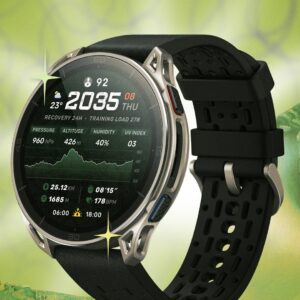
Amazfit’s Cheetah 2 Ultra is a premium titanium-and-sapphire trail running watch, with a $599.99 price that feels pretty steep for a brand otherwise known for its budget options. And while Amazfit’s Cheetah line isn’t exactly my favorite, the Cheetah 2 Ultra is still an incredibly solid choice for any runner who wants a watch that looks and feels top-of-the-line.
Like with the Cheetah 2 Pro, there’s more than meets the eye with this surprisingly feature-rich watch. Here are five features in the Cheetah 2 Ultra that go a bit beyond the manual.

Unlock a secret developer mode in your Amazfit watch
Your Zepp app has a hidden menu you probably wouldn’t stumble upon by accident. Go to Profile, then Settings, then About, and tap the Zepp logo seven times in a row. This unlocks developer mode, which lets you dig into device information and debugging options that aren’t normally visible in the consumer-facing app. It’s not going to unlock secret hardware, but it’s a useful place to check firmware details or troubleshoot a stubborn sync issue, and it’s fun rabbit hole if you like poking around under the hood.
Developer mode also lets you install custom watch faces, rather than relying on the existing native watch face library and upload a custom face on your computer, scan a generated QR code, and install it directly onto your watch.
Prepare for difficult elevation at a glance on your Amazfit Cheetah 2Ultra
If you’re planning a route with serious hills, this is one of the Ultra’s best hacks. The watch includes an elevation overview tool that color-codes slope difficulty across a route, so instead of squinting at a raw elevation profile and trying to guess where the brutal climbs are, you get a more accessible visual for where the terrain gets steep. This feature is easy to miss if you’re not a dedicated trail runner, but it’s worth pulling up before any route, so you know what you’re walking into (before the hill tells you itself, the hard way).
Here’s how to use the color-coded elevation glance on your Amazfit Cheetah 2 Ultra:
-
Create your route: Open the Zepp App, go to the Workout tab, select Create Route, and save your path.
-
Send the route to your watch: Sync your devices and check that the route successfully transfers to your watch.
-
Open Trail Mode: On your watch, launch the Trail Run sports profile before you start running.
-
Activate your route: While in trail mode, go to Settings, select Navigation, choose My Route, and select the route you created. Swipe to the elevation profile to see your color-coded preview.
If you want to see this elevation profile during your run, you can add elevation as a data screen. Here’s how to customize your data screens on your Amazfit:
-
Select Workout on your watch and select your activity (like Outdoor Running).
-
Go to Settings > More > Data Page.
-
Tap whichever data field you want to show the elevation. You can swipe through your existing data pages or tap Add Page to create a new one.
Use the flashlight’s boost mode when you need extra light (and practice the SOS feature)
Every Ultra user loves their watch’s built-in flashlight, but there’s even more to get out of it. The Ultra’s flashlight includes white, red, SOS, and boost lighting modes, not just a single beam. The boost mode is there for when you need maximum brightness, like scanning a dark trail, while the SOS mode is a safety feature and needs to send a clear flashing signal in the dark. Cycle through the modes with repeated presses rather than assuming it’s a one-setting tool.
After you press and hold the top-left button to turn on the flashlight, use the UP or DOWN buttons to cycle through the white brightness settings until you reach the red light mode. You can also swipe down from the watch face to open the Control Center and tap the flashlight icon.
Use your Cheetah 2 Ultra to browse new maps
You might assume your options are limited to whatever maps Amazfit preloads or offers through the Zepp app’s map store—which includes plenty of options already. But you can go a little further. The Cheetah 2 Ultra can be used as a map browsing tool when you import OSM (OpenStreetMap) map files, which means if you’re headed somewhere obscure that isn’t well covered by the default map set, you have a nifty workaround. Just keep in mind the downloaded map needs to actually match your real location to be usable, so this is a plan-ahead hack, not something you sort out mid-trail.
Use the extra storage on your Amazfit Cheetah 2 Ultra to load MP3 files
Even though the Ultra doesn’t download music directly from streaming services like Spotify or Amazon Music the way some competitors do, you can manually load MP3 files onto the watch yourself. This is notable because the Cheetah 2 Ultra doubles the Pro’s storage to 64GB, which means plenty room for saved running routes, offline maps, and mp3 files for music. It’s an extra step compared to a simple streaming sync, but for anyone who wants a truly phone-free long run, it’s a hack worth knowing about. To load music, head to your Amazfit Cheetah 2 Ultra device page in your Zepp app > Select “Music” > select .mp3 files from your phone and transfer them to the watch.