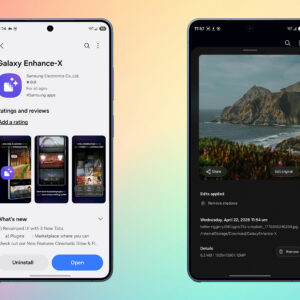
Samsung’s One UI software for its Galaxy phones comes packed with features and functionality, but there are also several official extra apps made by Samsung that don’t come preinstalled on its phones—and they’re well worth checking out.
I’ve already written about the various Good Lock plug-ins—which let you build your own keyboards and set separate volume levels for individual apps—but that’s not all there is to explore when it comes to additional apps. There’s also Galaxy Enhance-X, a tool for polishing and improving your photos and videos, as well as manipulating digital documents. Enhance-X can do everything from applying cinematic filters to pictures, to scanning in documents and translating them at the same time, and it’s free to install and use.
It’s also just been given a major revamp, with Samsung cleaning up the app’s interface as well as adding some additional features. If you use a Samsung phone, you can get Enhance-X from the Galaxy Store.
Learning the basics in Enhance-X
There are now three tabs to work with in Enhance-X, part of the recent app interface revamp: Plug-ins, Home, and History. The Plug-ins tab is a good place to start, because it shows off some of the app’s capabilities: Tap the download icon (the downward arrow) on FilmStyle to access nine extra filters for your pictures.
These filters and many more effects can be applied to your photos and videos from the Home tab. This tab is essentially a file picker—you can select one or more photos and videos to work with. To switch to the standard Gallery app view (complete with albums and collections), tap the flower-style icon in the top right corner.

Credit: Lifehacker
Pick one or more images, and you can choose between Photo tools and Doc tools (for scans) at the bottom; if you’re selecting videos, there’s just the Video tools option. That then takes you into the full editing interface, where you can see everything Enhance-X has to offer (including the FilmStyle filters). Use the icons at the bottom of the screen to browse through the tools, which are typically one-tap enhancements that the app will configure itself. There’s Colorize for adding color to black and white photos, for example; HDR for boosting dynamic range; and Fix blur for images that aren’t quite sharp enough.

Credit: Lifehacker
Many of these options are useful quick fixes, but there are some fun tools as well. Tap Creative then 24-hr time lapse, and you can turn any image into a short video—nothing in the image will move, but the colors will shift as if you’re seeing the picture go through a full night-and-day cycle.
Some of the tweaks available will vary depending on the type of image or video you’ve selected. Pick a portrait shot for example, and you get access to the Face tool—this gives you sliders for adjusting the smoothness and tone of the facial features, and you can adjust the strength of each effect individually.
Exploring more Enhance-X features
If you pick Film style filters from the Suggested tab when editing a picture, you can try out the filters we downloaded earlier. Use the thumbnails to browse between the different effects and see how they work—if you tap the small “i” button to the left you get a useful rundown of what each filter does and which types of images it works best with. Over on the video tools side, you’ve got options like Slow mo. This presents you with a timeline of your video, and if you press and hold at any point in that timeline, Enhance-X adds a special slow-motion effect.

Credit: Lifehacker
There are also simple trimming tools for your video clips, as well as a Single take section where you get to play around with effects like rebound (which creates a video that can loop infinitely) and highlights (which picks out the best parts of the video). Each effect can be previewed on screen before saving.
For documents scanned as photos, there are a host of different options. You’re able to apply crops, filters (to add or remove color), text, and scribbled highlights; you can combine different scans together in one document; and you can remove any unwanted scanned elements (like fingers).

Credit: Lifehacker
Choose Add text, for example, and you get the option to drop a text box right on top of your scan, with settings for font size, style, and color. Whether you need to add annotations or correct mistakes on the original document, it’s straightforward and intuitive to use, and means you don’t have to call up a separate app or start editing on a desktop interface.
Head to the History tab to review all your edits and undo them if necessary. Enhance-X is something I’ve kept on my Galaxy phone ever since I discovered it, and it’s often come in use for edits that it can do more quickly than other apps or that other apps can’t do at all—including the apps that actually come with One UI.