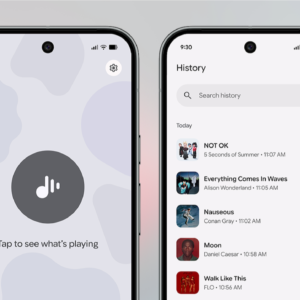
The only thing Pixel users love more than the lock screen’s Now Playing widget is talking about the Now Playing widget. Whenever I’m out and about with my Pixel and there’s music playing, I’ll always take a sneaky look at the lock screen, and yes, it’ll have identified the song. It’s magical. But until now, that’s where the magic stopped.
What if you want a list of all the songs the widget recognized while you were at your local cafe? What if you want to save a song or play it in YouTube Music? Or even trigger the music search manually? Until now, that wasn’t really possible. Now, Google has chosen to bring this functionality to a dedicated app, as part of its March Pixel Drop.
How to find your Now Playing listening history on Google Pixel
First, start by downloading the Now Playing app from the Google Play Store. At launch, it might ask you to download the latest software update and come back in a couple of hours. Once I installed the update, I was in.
To use the app, you’ll need to enable the background feature that scans for music. If it’s disabled, you’ll be prompted to enable it before you can use the app (you’ll be taken to where you can toggle it on).

Credit: Khamosh Pathak
The app opens to a history view, and you’ll be glad to know that all the songs your Pixel’s Now Playing widget previously recognized will all be here. The list can be pretty detailed. For me, it was over 100 songs long.
You can do more than look at your history, too. Tap the three-dot Menu button next to any song to listen to it on YouTube Music, add it to your Liked Songs, add it to a playlist, or add it to a Favorites section (which you can visit using the heart icon in the bottom toolbar).

Credit: Khamosh Pathak
Head over to the Settings section up top, and you’ll find an option for Connected music service. You can change your default music service here. Sadly, the only options available right now are YouTube and YouTube Music, but hopefully this means Google will add options for Spotify and Apple Music in future updates. Other than that, the Settings screen is quite bare. You can tap the Clear History button if you want to get rid of all your previously recognized songs, but that’s about it.
How to manually scan for songs using the Now Playing app

Credit: Khamosh Pathak
Beyond seeing a history of songs, the advantage of having a dedicated Now Playing app is that you can search for a song even if the widget doesn’t automatically detect it. Open the Now Playing app and switch to the Live tab at the end. Then, tap the big Music button to start recognizing the song (if you’ve ever used Shazam, this should be familiar). In a second, the app will recognize the song, and you’ll see a full-screen preview for it.
The Now Playing app also supports Quick Settings controls, one of my favorite ways to trigger shortcuts and utilities on Android. To add the Now Playing control to your Quick Settings, open the notification drawer, switch to the Quick Settings panel, and tap the Edit button. Find and add the Now Playing control. Now, the next time you want to find out what you’re listening to, just open the Quick Settings panel, tap the Now Playing control, and wait as the app does its thing.